DITO APN Settings 2026: Fix Slow Internet & Configure Your SIM
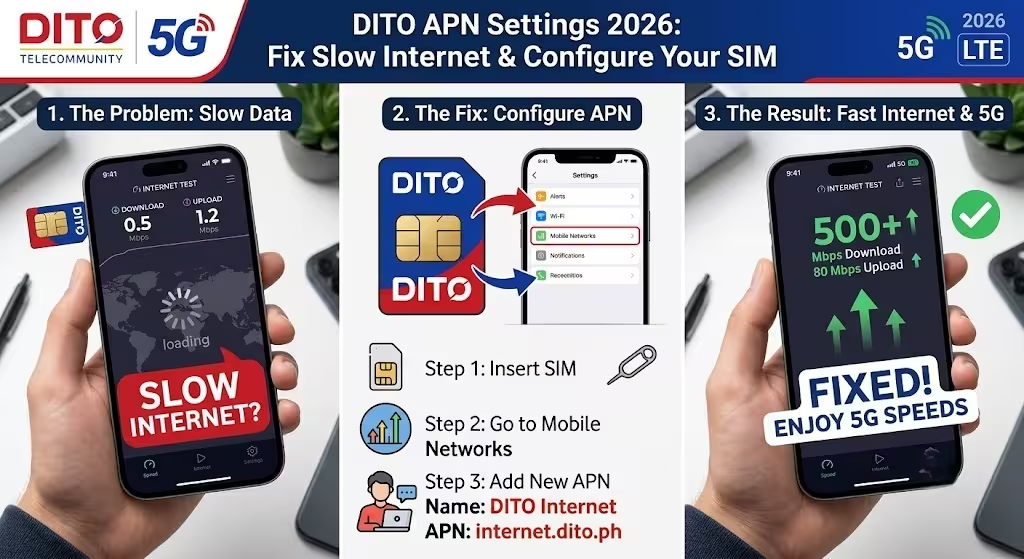
If your DITO mobile data is slow, not working, or frequently disconnecting, updating your DITO APN settings can often resolve the issue. The Access Point Name (APN) connects your smartphone to DITO’s mobile data network, and an incorrect configuration may prevent you from accessing the internet or achieving optimal speeds.
This guide explains the latest DITO APN Settings 2026, how to configure the APN for DITO SIM on Android and iPhone, troubleshoot common mobile data problems, improve internet speed, and answer frequently asked questions.
Whether you’re setting up a new SIM or fixing an existing connection, you’ll find everything you need below.
Related – DITO 5G Coverage Map
What Is a DITO APN?
A DITO APN (Access Point Name) is the network configuration your smartphone uses to connect to DITO Telecommunity’s mobile internet service.
Whenever you turn on mobile data, your phone uses the APN settings to communicate with DITO’s network and establish an internet connection. If these settings are incorrect, you may experience:
- No mobile data connection
- Slow internet speeds
- Frequent disconnections
- Inability to browse websites
- Apps not loading properly
- MMS or network service issues
Configuring the correct DITO APN settings ensures your device connects to DITO’s official network for the best possible performance.
Latest DITO APN Settings 2026
Use the following official APN configuration.
| Setting | Value |
|---|---|
| Name | DITO Internet |
| APN | internet.dito.ph |
| APN Type | default,supl,dun |
| MCC | 515 |
| MNC | 66 |
| Username | Leave Blank |
| Password | Leave Blank |
| Proxy | Not Set |
| Port | Not Set |
| Authentication Type | None |
| Server | Not Set |
| MMSC | Not Set |
| MMS Proxy | Not Set |
| MMS Port | Not Set |
| APN Protocol | IPv4/IPv6 (if available) |
| APN Roaming Protocol | IPv4/IPv6 (if available) |
| Bearer | Unspecified |
| MVNO Type | None |
Leave any fields not listed above at their default values.
How to Configure DITO APN Settings
If mobile data isn’t working correctly, manually configure the APN by following these steps.
Step 1: Open Mobile Network Settings
Navigate to:
Settings → Mobile Network
Depending on your phone, you may also find the option under:
- Connections
- SIM Cards & Mobile Networks
- Network & Internet
- Cellular Network
Most Related – how to activate DITO SIM
Step 2: Open Access Point Names
Tap:
Access Point Names (APN)
If multiple APNs appear, you’ll create a new one.
Step 3: Add a New APN
Tap one of the following:
- Add (+)
- New APN
- Create APN
The wording varies by device manufacturer.
Related – DITO eSIM Guide
Step 4: Enter the DITO APN Settings
Fill in the fields exactly as shown.
Name
DITO Internet
APN
internet.dito.ph
APN Type
default,supl,dun
MCC
515
MNC
66
Leave all other settings unchanged unless specifically required.
Step 5: Save the APN
Tap Save.
Return to the APN list.
Step 6: Select the New APN
Choose DITO Internet as your active APN profile.
Step 7: Enable Mobile Data
Turn mobile data off for a few seconds and turn it back on.
If necessary, restart your phone.
DITO APN Settings for Android
Most Android smartphones follow a similar setup process.
Navigate to:
Settings → Connections → Mobile Networks → Access Point Names
or
Settings → Network & Internet → Mobile Network → APN
Create a new APN using the configuration listed above.
Once saved, select it as your active APN.
more: SIM Card Registration Philippines
DITO APN Settings for Samsung Phones
Samsung users can configure the APN by following these steps.
- Open Settings
- Tap Connections
- Select Mobile Networks
- Tap Access Point Names
- Choose Add
- Enter the latest DITO APN settings
- Save the profile
- Select the newly created APN
- Restart your phone
DITO APN Settings for Xiaomi, Redmi & POCO
On Xiaomi devices:
- Open Settings
- Tap SIM Cards & Mobile Networks
- Select your DITO SIM
- Open Access Point Names
- Add a new APN
- Save the configuration
- Restart your device
DITO APN Settings for OPPO, Vivo & Realme
Most OPPO, Vivo, and Realme smartphones use a similar navigation path.
Go to:
Settings → SIM Card & Mobile Data → Access Point Names
Create a new APN using the official settings.
Here is complete guide about: Dito Sim Registration
DITO APN Settings for iPhone
Most iPhones automatically download carrier settings.
If APN editing is available:
- Open Settings
- Tap Cellular
- Select Cellular Data Network
- Enter:
APN
internet.dito.ph
Leave Username and Password blank.
Save the settings and restart the device if prompted.
Why Your DITO Internet May Be Slow
Incorrect APN settings are only one possible cause of slow internet.
Other common reasons include:
Weak Network Coverage
Signal strength affects download and upload speeds.
Move to an area with stronger DITO coverage if possible.
Network Congestion
Internet speeds may decrease during peak usage hours.
Outdated Phone Software
Install the latest software updates for improved network compatibility.
SIM Registration Not Completed
New DITO users must activate and register their SIM before using all network services.
Unsupported Smartphone
Some older devices may not fully support DITO’s LTE and VoLTE network.
Here how to get: dito customer service
How to Activate Your DITO SIM?
If your SIM is new, complete the activation process before troubleshooting APN settings.
Typically, activation begins when you:
- Turn on mobile data
- Send an SMS
- Make a phone call
- Connect to the internet
These actions trigger your welcome SMS and activation instructions.
After activation, complete the mandatory SIM registration through the DITO App.
Enable VoLTE for Better Calling
DITO primarily operates on a VoLTE (Voice over LTE) network.
If mobile data works but voice calls fail:
- Open Settings
- Go to Mobile Network
- Enable VoLTE or 4G Calling
Restart your phone if necessary.
VoLTE provides:
- Better voice quality
- Faster call setup
- Simultaneous calls and mobile data
Check If Your Phone Is DITO Compatible
Using a compatible smartphone ensures better performance and fewer connectivity issues.
Recent devices from brands such as:
- Samsung
- Apple
- Xiaomi
- Huawei
- OPPO
- Vivo
- Realme
- Tecno
- Infinix
generally support DITO’s LTE and 5G network, provided the specific model is certified for compatibility.
Here is guide how to register dito sim:
Common DITO APN Problems and Fixes
Mobile Data Not Working
Possible solutions:
- Verify the APN is entered correctly.
- Restart your device.
- Enable mobile data.
- Check SIM registration status.
APN Option Missing
Some carrier-locked phones hide APN settings.
Update your phone’s software or contact the manufacturer if the option is unavailable.
Get: DITO Promos
Internet Still Slow
Try:
- Resetting network settings
- Recreating the APN
- Moving to an area with better signal
- Restarting your phone
Cannot Save APN
Ensure:
- Required fields are filled correctly
- MCC is 515
- MNC is 66
Incorrect values may prevent the APN from saving.
Tips to Improve DITO Internet Speed
To maximize your DITO mobile data performance:
- Use the latest official DITO APN settings.
- Restart your phone after changing APN settings.
- Keep your phone updated.
- Enable VoLTE.
- Turn off unused background apps.
- Switch between 4G and 5G if signal strength varies.
- Keep your SIM properly registered.
- Use a compatible smartphone.
Frequently Asked Questions
Final Thoughts
Using the correct DITO APN settings is one of the fastest ways to resolve mobile data problems and improve internet performance. By configuring the official DITO APN with internet.dito.ph, selecting it as your active profile, and restarting your device, you can restore a stable connection and enjoy faster browsing, streaming, gaming, and downloads.
If problems persist after updating the APN for DITO SIM, make sure your SIM has been activated and registered, enable VoLTE for voice services, and confirm that your smartphone is officially compatible with DITO’s network. With the right settings and a supported device, you can maximize your mobile experience on DITO in 2026.